


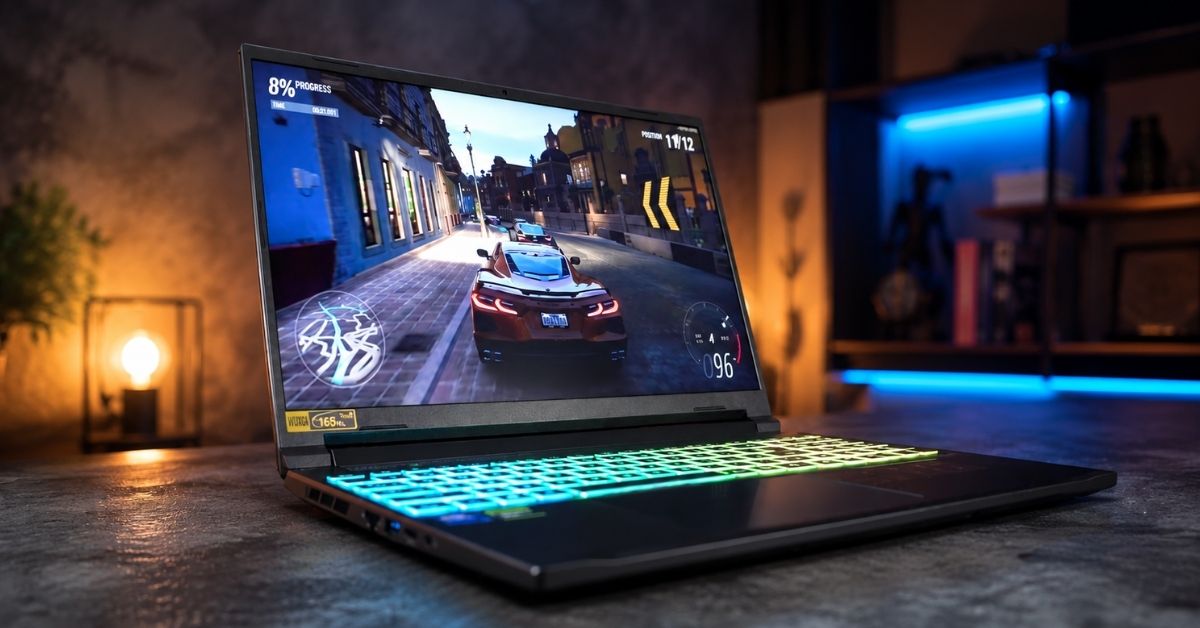
If you’re serious about editing video but stuck under a $1000 budget, the best laptops for video editing under $1000 right now give you way more power than budget machines from even a few years ago. Global demand for video editing systems hit about 989 million USD in 2024 and is projected to reach around 1.6 billion USD by 2032 — Source: Intel Market Research, 2025.
This post walks you through five carefully selected laptops that can handle 1080p and entry‑level 4K timelines, color correction, and GPU-accelerated exports without melting down mid‑render. We’ll break down real-world strengths, who each machine is best for, and which one you should grab if you work in Premiere Pro, DaVinci Resolve, or CapCut. For example, if you regularly stack multiple LUTs and noise reduction on a 4K vlog timeline, you’ll want the stronger GPUs at the top of this list.
This post contains affiliate links. As an Amazon Associate, I earn from qualifying purchases at no extra cost to you.
Contents
- 1 5 Best Laptops for Video Editing Under $1000 (Ranked)
- 2 1. Acer Nitro V 15 (ANV15-51-73B9) – Best Overall for 4K and Effects-Heavy Timelines
- 3 2. ASUS TUF Gaming A16 – Best 16″ Color-Friendly Panel Under $1000
- 4 3. HP Victus 15.6″ (i5-13420H + RTX 4050) – Best Value Pick
- 5 4. ASUS TUF A16 (Ryzen 7-7735HS + Radeon RX7600S) – Best AMD-Only Editing Rig
- 6 5. HP OmniBook 5 2025 – Best for Battery Life and Touchscreen Workflows
- 7 Honorable Mentions Within This List
- 8 Comparison Summary Table
- 9 Key Takeaways for Creators
- 10 How We Ranked These Products
- 11 Pricing & Deals Overview
- 12 How to catch the best laptop deals (step-by-step)
- 13 Final Thoughts + CTA
- 14 FAQ: Laptops for Video Editing Under $1000
- 15 1. Is 16GB of RAM really enough for video editing?
- 16 2. Do I really need a dedicated GPU for video editing?
- 17 3. Can I edit 4K video comfortably on these laptops?
- 18 4. Is a 144Hz or 165Hz display important for video editing?
- 19 5. How much storage do I really need for editing?
- 20 6. Which of these laptops is best if I mostly edit short-form content (TikTok, Reels, Shorts)?
- 21 7. Are these laptops good enough for color grading and LUT-heavy workflows?
- 22 8. Where can I learn more about choosing specs for a video editing laptop?
5 Best Laptops for Video Editing Under $1000 (Ranked)
These are the five best laptops for video editing under $1000 based on performance, thermals, and creator-friendly features.
1. Acer Nitro V 15 (ANV15-51-73B9) – Best Overall for 4K and Effects-Heavy Timelines

- Beyond Performance: Empower your gaming and creativity with the Nitro V 15, combining an Intel Core i7-13620H processor …
- More Games. More Fun. Windows is the GOAT of gaming. We have more game titles than any other OS. Windows has more triple…
- Power That Plays Harder. Windows offers more games titles you can’t get on a Mac. Designed for speed, impressive app per…
If you want the most raw editing horsepower you can squeeze under $1000, the Acer Nitro V 15 with Intel Core i7-13620H and RTX 4050 sits at the top of this list for a reason. The 13th‑gen i7 paired with an RTX 4050 and 16GB DDR5 handles stacked effects, multicam edits, and GPU-accelerated exports far better than typical “student” laptops in this price range. In a practical workflow, that means fewer dropped frames when scrubbing through a 4K H.264 vlog with color grading, sharpness, and text overlays applied.
The 15.6″ Full HD 144Hz IPS panel feels snappy when scrubbing timelines or dragging clips along the playhead, even though refresh rate doesn’t change export times. The high refresh does help the UI feel more “locked in” when trimming in Premiere or Resolve. Thunderbolt 4 and Wi‑Fi 6 give you fast external SSD and NAS access, which is huge if you keep projects on external drives instead of clogging the internal 512GB Gen 4 SSD.
On the cooling side, Acer’s NitroSense utility lets you ramp up the fans when you’re exporting long projects, so the CPU and GPU can sustain higher clocks without thermal throttling. This is the difference between a 20‑minute export and a 35‑minute one on a long 4K timeline with heavy effects. Adobe and third-party tests show that enabling proper GPU acceleration can dramatically reduce export times compared with software-only encoding — Source: Neat Video GPU Acceleration Guide, 2011. For example, when you switch Premiere’s renderer to GPU acceleration, RTX‑class cards like the 4050 usually carry a big part of the export load.
Pros (for video editing):
- Powerful i7 + RTX 4050 combo for demanding 1080p and entry‑level 4K workflows
- 16GB DDR5 RAM as a strong baseline for modern NLEs
- 144Hz IPS display for fluid UI and decent color for budget color work
- Thunderbolt 4 + Wi‑Fi 6 for fast external drives and network storage
- NitroSense controls for manual cooling and performance tuning during long renders
Cons (to keep in mind):
- 512GB SSD can fill quickly with 4K footage, so you’ll likely want an external SSD
- Close to the top of the budget (around ~$999), so less room for accessory upgrades
2. ASUS TUF Gaming A16 – Best 16″ Color-Friendly Panel Under $1000

- AMD Ryzen 7 7445HS Processor (3.2GHz)
- 16″ Full HD+ 144Hz Display
- NVIDIA GeForce RTX 4050 Graphics
If you care about a larger canvas and color-friendly panel, the ASUS TUF Gaming A16 (Ryzen 7 7445HS + RTX 4050) is an awesome sweet spot. The 16″ Full HD+ 144Hz display with a wide color gamut gives you more vertical space in the timeline plus better color accuracy compared with many budget panels at this price. In real editing sessions, that extra screen height means you can keep scopes, effects controls, and the timeline visible without constantly resizing panels.
The Ryzen 7 7445HS brings eight powerful cores that hold up well in CPU-heavy parts of the workflow like decoding highly compressed footage, generating proxies, and background renders. Paired with the RTX 4050 and 16GB DDR5 RAM, you get smooth playback in mainstream editors, even when you layer basic color correction, transitions, and text. This combination is especially helpful if you like to preview at full resolution instead of constantly dropping down to half or quarter res.
ASUS’s TUF line is known for military-grade durability, which matters more than people think for editors who toss their laptop in a backpack daily. Long render sessions generate heat, and a sturdier chassis tends to maintain performance better over time. Customer reviews for recent TUF A16 models consistently highlight solid performance for both gaming and editing at price points under $1000 — Source: Best Buy customer reviews, 2022–2025. For example, buyers regularly mention running demanding workloads like modern games and creative apps without unexpected slowdowns.
Pros (for video editing):
- 16″ FHD+ 144Hz display with better color coverage than many budget panels
- Ryzen 7 7445HS handles CPU-heavy decoding and background tasks well
- RTX 4050 + 16GB DDR5 RAM for smooth playback and GPU-accelerated exports
- Durable TUF chassis for frequent travel and long render sessions
Cons:
- Slightly bulkier than a 15.6″ machine; not the lightest to carry daily
- 512GB SSD again encourages external drive usage for larger projects
3. HP Victus 15.6″ (i5-13420H + RTX 4050) – Best Value Pick

- HP Victus 15.6″ Gaming Laptop with FHD, 144Hz refresh rate, IPS micro-edge anti-glare display
- NVIDIA GeForce RTX 4050 6GB GDDR6
- 16 GB DDR4 RAM, 512 GB PCIe Gen4 NVMe M.2 solid-state drive
The HP Victus 15.6″ Gaming Laptop (i5-13420H, RTX 4050, 16GB DDR4, 512GB SSD) is the value hero of this lineup. At around $749, it undercuts many competitors while still packing a GPU that can chew through H.264 and H.265 timelines with hardware acceleration enabled. This is exactly the kind of configuration that lets you jump from entry‑level editing to more serious client work without immediately needing a desktop. Community deals have even seen similar configs drop closer to $500 during big sales — Source: enthusiast deal forums, 2024.
The 13th‑gen i5-13420H may not match the i7 or high‑end Ryzen chips in raw multi‑core throughput, but in real-world use it holds up well for 1080p and light 4K projects, especially when proxies are involved. The FHD 144Hz IPS display is more about snappy UI and gaming, but it still provides a comfortable editing environment for everyday work. If you pair this laptop with an external color-accurate monitor later, you get a very capable two‑screen editing setup on a budget.
HP ships this Victus with 16GB DDR4, which is the current baseline I recommend for anyone doing serious editing. Industry guides note that 16GB works well for heavy multitasking and content creation, while 32GB is best for very demanding professional video editing — Source: HP Tech Takes, 2024. For example, if you mostly edit 1080p talking‑head videos with a few graphics overlays, 16GB will feel fine; if you’re mixing 4K B‑roll, After Effects comps, and big Photoshop files, you’ll eventually want a higher‑RAM machine.
Pros (for video editing):
- Fantastic price-to-performance ratio around $749
- RTX 4050 (6GB) gives strong GPU acceleration for exports and effects
- 16GB RAM + 512GB SSD is a solid starting spec for serious editing
- 144Hz FHD display for a smooth editing UI
Cons:
- DDR4 instead of DDR5 (not a dealbreaker, but worth noting)
- Plastic build feels more “budget” than the TUF line
4. ASUS TUF A16 (Ryzen 7-7735HS + Radeon RX7600S) – Best AMD-Only Editing Rig

- 【16″ FHD 165Hz Display】Immerse yourself in the game with reduced screen tearing, heightened clarity, and an enhanced com…
- 【AMD Ryzen 7 7735HS Processor】Effortlessly accelerate your creativity while powering through new levels of productivity …
- 【AMD Radeon RX7600S V8G Graphics】Indulge in a visual feast as you embark on a journey of stunning visuals, vibrant color…
If you prefer an all‑AMD stack, the ASUS TUF A16 with Ryzen 7-7735HS and Radeon RX7600S is a compelling editing platform. The 8‑core Ryzen 7 handles decoding, proxy generation, and multi‑track timelines smoothly, while the Radeon RX7600S V8G GPU provides respectable performance in DaVinci Resolve and other apps that take advantage of modern AMD encoders. In real editing scenarios, this combo works well for 1080p/60 and moderate 4K projects, especially when you lean on proxies.
The 16″ FHD 165Hz display gives you a big editing canvas with high refresh and solid clarity, which is great when you’re juggling long timelines and stacked audio tracks. With 16GB DDR5 RAM and a 512GB PCIe SSD, day‑to‑day editing feels snappy, though you’ll still want external storage for serious projects. The advanced cooling system with six heatpipes, Arc Flow Fans, and AI-assisted noise management is particularly useful when you leave the laptop rendering for an hour while you step away.
One important nuance: some Adobe workflows still favor NVIDIA GPUs due to CUDA‑accelerated effects, especially in Premiere Pro. That doesn’t mean AMD is a bad choice; it just means you’ll see the biggest benefit in editors and encoders that are well‑tuned for AMD’s current drivers. For example, if your pipeline leans more on Resolve or you do a lot of H.265 exports using AMD’s hardware encoder, this TUF A16 makes a lot of sense under $1000.
Pros (for video editing):
- Ryzen 7-7735HS + RX7600S for an all‑AMD workflow
- 16″ FHD 165Hz display for large timelines and a responsive interface
- 16GB DDR5 + 512GB SSD for modern editing workloads
- Advanced cooling and RGB keyboard for long editing and gaming sessions
Cons:
- NVIDIA still has broader CUDA acceleration support in some Adobe workflows
- Slightly more niche if your plugins are tuned for NVIDIA GPUs
5. HP OmniBook 5 2025 – Best for Battery Life and Touchscreen Workflows

- (Memory Disk and System): 16GB 7500 MHz DDR5 SDRAM, 1TB PCI-E NVMe M.2 SSD for Storage, Pre-install Windows 11 Home
- (Processor): AMD Ryzen AI 7 350 8-Core Processor (Up to 5.0 GHz, 16 MB Smart cache, 8 Cores, 16 Threads)
- (Screen and Graphics): Brilliant 16″ WUXGA (1920 x 1200) IPS 300 nits Anti-glare micro-edge, 62.5% sRGB , AMD FreeSync T…
The HP OmniBook 5 2025 (Ryzen AI 7 350, Radeon 860M, 16″ WUXGA IPS touchscreen, 16GB LPDDR5, 1TB SSD) is the most subtle “creator” machine in this list. Instead of a flashy gaming design, you get a more professional aesthetic, touchscreen functionality, and a big 1TB SSD right out of the box. For editors who travel, that 1TB internal drive means you can carry more projects locally before you absolutely need an external SSD.
The Ryzen AI 7 350 and integrated Radeon 860M won’t match the RTX 4050 or RX7600S in pure GPU grunt, but they still deliver enough performance for 1080p and lighter 4K edits with sensible project settings. This is ideal if your day looks like editing short-form content, recording screen tutorials, and jumping into Zoom calls — not constantly pushing multi-layer 4K timelines with heavy effects. The touchscreen WUXGA (1920×1200) panel is also handy if you like to scrub timelines, adjust sliders, or move clips with your finger.
HP claims excellent battery life on similar Ryzen AI configurations, which matters when you’re cutting on the go instead of parked near a wall outlet. Paired with the backlit keyboard, this makes the OmniBook 5 a strong everyday laptop that can still switch into “editor mode” when needed. Think of it as a productivity-first machine that happens to be quite capable for video editing rather than a gaming laptop you’re repurposing.
Pros (for video editing):
- 1TB SSD gives you much more internal project space than the others
- Ryzen AI 7 350 + Radeon 860M is solid for 1080p and light 4K workflows
- 16″ WUXGA IPS touchscreen for more vertical space and touch controls
- Strong battery life emphasis, great for editing away from power
Cons:
- Integrated GPU is weaker than dedicated RTX 4050/RX7600S for heavy effects
- Not ideal for very complex 4K timelines or GPU-heavy plugins
Honorable Mentions Within This List
These honorable mentions highlight specific strengths from the same five laptops without adding new models.
If you mainly care about raw export speed and effects-heavy 4K projects, the Acer Nitro V 15 is the easiest recommendation because the i7‑13620H and RTX 4050 combo simply gives you the most headroom at this price. In practice, that means faster renders when you stack LUTs, denoisers, and motion graphics.
If your top priority is a comfortable editing canvas and better built-in color, the ASUS TUF Gaming A16 (RTX 4050) stands out with its 16″ FHD+ panel and sturdy chassis. This matters when you spend hours in the color page dialing in skin tones and matching B‑roll across multiple cameras.
For editors who live on a tight budget but still need modern GPU acceleration, the HP Victus 15.6″ is the standout value, especially if you’re willing to pair it with an external SSD and monitor later. If you expect to travel frequently and work unplugged, the HP OmniBook 5 becomes the “honorable mention” you should seriously consider first.
Comparison Summary Table
This table summarizes the key specs and best-use scenarios for all five sub-$1000 laptops.
| Laptop | CPU | GPU | RAM | Storage | Display | Best For | Approx. Price* |
|---|---|---|---|---|---|---|---|
| Acer Nitro V 15 (ANV15-51-73B9) | Intel Core i7-13620H | NVIDIA RTX 4050 | 16GB DDR5 | 512GB Gen 4 SSD | 15.6″ FHD 144Hz IPS | Best overall performance, effects-heavy 1080p/4K | ~$999 |
| ASUS TUF Gaming A16 (RTX 4050) | AMD Ryzen 7 7445HS | NVIDIA RTX 4050 | 16GB DDR5 | 512GB SSD | 16″ FHD+ 144Hz | Large, color-friendly panel, long sessions | Under $1000 |
| HP Victus 15.6″ (2024) | Intel Core i5-13420H | NVIDIA RTX 4050 (6GB) | 16GB DDR4 | 512GB PCIe Gen4 SSD | 15.6″ FHD 144Hz | Best value 1080p/entry 4K | ~$749 |
| ASUS TUF A16 (RX7600S) | AMD Ryzen 7-7735HS | AMD Radeon RX7600S V8G | 16GB DDR5 | 512GB PCIe SSD | 16″ FHD 165Hz | All‑AMD workflows, Resolve-heavy use | Under $1000 |
| HP OmniBook 5 2025 | AMD Ryzen AI 7 350 | AMD Radeon 860M | 16GB LPDDR5 | 1TB SSD | 16″ WUXGA IPS Touch | Travel, battery life, 1080p-focused editing | ~$800–$900 |
*Prices are approximate and can change based on sales, regions, and specific configurations.
Industry testing shows that higher-end models like the MacBook Pro 14 rank as top editing laptops overall but sit well above the $1000 mark — Source: RTINGS, 2025. For example, that MacBook Pro delivers incredible performance, but many creators still need sub-$1000 Windows machines like the ones above to stay on budget.
Key Takeaways for Creators
These key takeaways distill what matters most when picking a budget video editing laptop.
- RTX 4050 or equivalent GPU delivers the best experience for hardware-accelerated exports and real-time effects under $1000.
- 16GB of RAM is the minimum you should accept for serious editing, with 32GB reserved for heavier professional workloads.
- 512GB SSD is usable but pushes you toward external SSDs quickly once you work with 4K footage and multiple projects.
- 16″ displays like those on the TUF A16 and OmniBook 5 give more vertical room for timelines and scopes than 15.6″ panels.
- Thermals and build quality matter for long renders more than people expect, so TUF and Nitro’s cooling systems are real advantages.
Memory and hardware guides consistently note that 16GB is enough for editing 1080p or light 4K in many workflows, while 32GB is better for heavy professional projects — Source: Kingston, 2016; HP Tech Takes, 2024; ZDNet, 2026. For example, if you regularly run Premiere, After Effects, Photoshop, and a browser full of tabs at the same time, you’ll quickly feel the difference between 16GB and 32GB.
How We Ranked These Products
We ranked these laptops by real-world video editing performance, reliability, and overall value under $1000.
First, we prioritized CPU + GPU combinations that can comfortably handle 1080p and entry-level 4K editing in mainstream NLEs like Adobe Premiere Pro, DaVinci Resolve, and Vegas. That’s why configurations with the RTX 4050 or RX7600S floated to the top: modern encoders and GPU-accelerated effects matter more than raw gaming FPS in editing workloads. For example, enabling GPU acceleration in Premiere and Media Encoder can dramatically shift export work from the CPU to the GPU for faster renders.
Second, we filtered for at least 16GB of RAM and fast SSD storage, since both industry memory guides and real creators agree that 16GB is the minimum reasonable starting point for editing in 2026 — Source: Kingston, 2016; HP Tech Takes, 2024; ZDNet, 2026. For instance, many editors describe 8GB setups as barely usable once they open multiple apps alongside their NLE.
Finally, we weighed display quality, thermals, and expandability because those factors affect how the laptop feels after months of real use. Creators now increasingly edit on laptops, with mobile editing systems growing faster than desktop setups — laptop-focused segments in the video editing computer market are growing at over 9% annually — Source: Intel Market Research, 2025. For example, a laptop with a strong cooling system and good panel can outlive cheaper machines that throttle and show inconsistent colors.
If you want to go deeper on the technical side, it’s worth reading HP’s RAM guide for creators and Kingston’s memory guide for video editing. For a broader view of high-end, non-budget options, you can also check RTINGS’ best laptops for video editing.
Pricing & Deals Overview
Pricing on these laptops usually ranges from about $750 to just under $1000, depending on sales and configurations.
In this group, the HP Victus 15.6″ typically sits at the lower end of the range (around $749), while the Acer Nitro V 15 often hovers right at the $999 boundary. Mid‑range options like the ASUS TUF A16 variants and HP OmniBook 5 tend to come in between, sometimes dropping significantly during seasonal sales. For example, deal posts have shown similar HP Victus configs going closer to $500 during major promotions, if you time it right.
How to catch the best laptop deals (step-by-step)
- Set your target config.
Decide your must‑haves (for example, RTX 4050, 16GB RAM, 512GB SSD), so you don’t get distracted by weaker GPUs with bigger SSDs. - Track prices for 1–2 weeks.
Add these exact models to wishlists and watch how prices move across a couple of sale cycles. - Prioritize GPU over storage.
Choose the stronger GPU even if storage is “only” 512GB, then add a good external SSD later. - Watch big sale events.
Black Friday, back‑to‑school, and brand-specific days often bring these configs under their usual prices. - Check return policies.
Make sure you can return or exchange the laptop if performance or thermals don’t meet your real-world editing needs.
If you want a broader shopping strategy, bookmark your site’s internal guides like our budget gaming laptop roundup and video editing laptop requirements checklist so you can reuse that decision framework the next time you upgrade.
Final Thoughts + CTA
These five laptops give you serious video editing power under $1000 without feeling like a compromise.
If you want the strongest all‑rounder, go straight for the Acer Nitro V 15. If you want a bigger, more color-friendly panel, the ASUS TUF Gaming A16 (RTX 4050) is hard to beat. Editors on a tight budget should eye the HP Victus 15.6″, while those who prioritize battery life and touchscreen workflows will feel at home on the HP OmniBook 5.
Whichever direction you lean, the next move is simple:
Browse back up to the list, pick the laptop that best matches your workflow, and use the Amazon affiliate links to check the current price, latest stock, and user reviews before you buy. Then, once your new machine arrives, come back and pair it with our editing workflow guides and color-grading tutorials so you’re not just upgrading hardware—you’re upgrading your entire creative process.
FAQ: Laptops for Video Editing Under $1000
These frequently asked questions cover the basics of choosing and using a video editing laptop under $1000.
1. Is 16GB of RAM really enough for video editing?
Yes, 16GB of RAM is enough for most 1080p and entry-level 4K editing, especially if you use proxies and avoid running too many heavy apps in parallel. Memory and system guides generally agree that 16GB is a practical baseline for content creation, while 32GB is better for heavy professional work — Source: Kingston, 2016; HP Tech Takes, 2024; ZDNet, 2026. For example, if you mostly edit YouTube videos with limited motion graphics, 16GB will feel fine; if you are doing complex commercial edits, 32GB gives more breathing room.
2. Do I really need a dedicated GPU for video editing?
For smooth timelines and fast exports, a dedicated GPU helps a lot, especially in apps that support GPU acceleration like Premiere Pro and DaVinci Resolve. Dedicated GPUs like the RTX 4050 and RX7600S handle real-time playback with effects and speed up H.264/H.265 exports compared with integrated graphics. For example, enabling GPU acceleration typically reduces export times significantly compared with using CPU-only rendering.
3. Can I edit 4K video comfortably on these laptops?
You can edit 4K video on these laptops as long as you manage expectations and project settings. Using features like proxies, optimized media, and smart playback resolution lets even mid‑range CPUs and GPUs stay responsive. For example, on the HP Victus or Nitro V, editing with half‑resolution preview and proxies will feel surprisingly smooth for most vlog and tutorial content.
4. Is a 144Hz or 165Hz display important for video editing?
High refresh rates like 144Hz or 165Hz don’t change export speed, but they do make the UI feel smoother when you scrub timelines, drag clips, or move between panels. In practice, that smoothness is nice to have, but color accuracy and panel quality matter more. For example, the 16″ FHD+ panel on the ASUS TUF Gaming A16 is valuable because of its size and color coverage, not simply because it hits 144Hz.
5. How much storage do I really need for editing?
For editing, 512GB is the bare minimum and 1TB is far more comfortable, especially when you work with 4K footage. A few active projects with lots of B‑roll can fill 512GB surprisingly quickly. That’s why laptops like the HP OmniBook 5, with its 1TB SSD, feel more forgiving. In practice, most editors combine a 512GB/1TB internal drive with at least one fast external SSD dedicated to active projects.
6. Which of these laptops is best if I mostly edit short-form content (TikTok, Reels, Shorts)?
If you mainly edit short-form vertical content, you can afford to lean a bit more on portability and battery life. The HP Victus 15.6″ is a great value option, while the HP OmniBook 5 is ideal if you want a more professional look, touchscreen, and bigger internal storage. For example, a typical day of cutting batches of 30–60 second clips with simple transitions is easily within both machines’ limits.
7. Are these laptops good enough for color grading and LUT-heavy workflows?
Yes, but you’ll get the best experience on the Acer Nitro V 15 and ASUS TUF Gaming A16 (RTX 4050) because their CPUs and GPUs have more headroom. For serious color work, consider pairing them with an external color-accurate monitor and calibrator. For example, you can keep the laptop’s built-in screen for timelines and tools while you reserve the external display for full-screen program monitoring.
8. Where can I learn more about choosing specs for a video editing laptop?
For deeper dives, check out:
- HP’s RAM guide for creators
- Kingston’s video editing memory guide
- RTINGS’ best laptops for video editing ranking
Then, on your own site, link readers into internal resources like our video editing laptop requirements guide so they stay within your content ecosystem after they finish this article.
